How to Leave a Google Classroom: Quick Student & Teacher Guide
Finished with a semester or looking to declutter your digital workspace? Knowing how to leave a class in Google Classroom is essential for maintaining an organized virtual learning environment. Whether you are a student moving on to new subjects or an educator shifting your course load, cleaning up your digital dashboard takes just a few clicks.
In this comprehensive guide, we’ll walk you through exact, hassle-free steps for unenrolling from a virtual class on both desktop and mobile devices.
How Students Can Unenroll from a Google Classroom
If you are a student, dropping a course from your dashboard is a straightforward process. However, remember that you will only be able to unenroll if your school’s administrator has enabled the option for your student account.
On a Computer (Web Browser)
- Navigate to classroom.google.com and log in with your school or personal Google account.
- Locate the dashboard card for the class you want to exit.
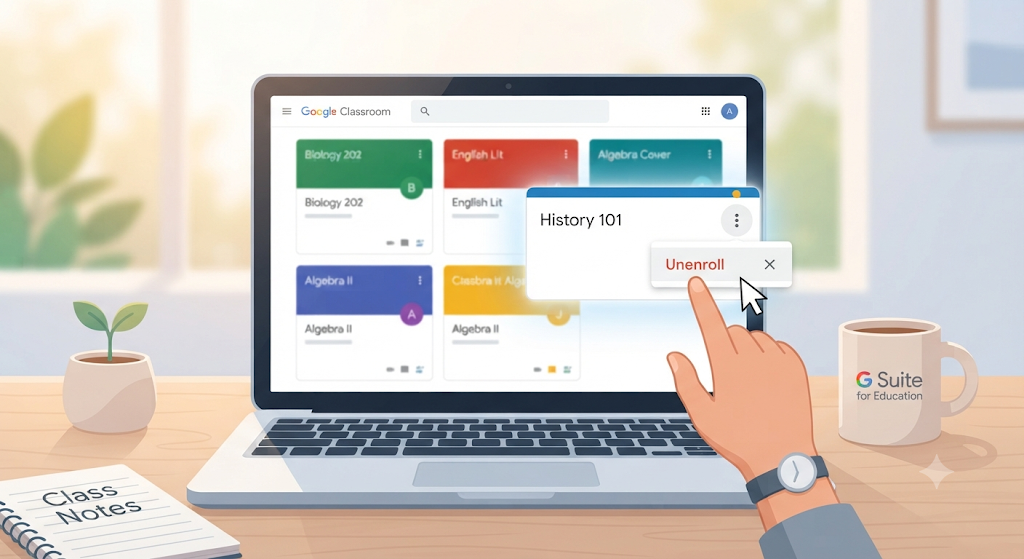
- Click the three vertical dots (more options) in the top-right corner of that class card.
- Select Unenroll from the drop-down menu.
- Click Unenroll again in the confirmation pop-up window to finalize.
On Mobile Devices (Android & iPhone/iPad)
- Open the Google Classroom app on your phone or tablet.
- Find the class you wish to leave on your main screen.
- Tap the three vertical dots on the class card.
- Tap Unenroll and confirm your choice.
Note: Leaving a class removes it from your main screen, but your files and assignment documents remain safely stored in your Google Drive under a folder named Classroom.
How Teachers and Co-Teachers Can Leave a Class
Managing an online learning management system (LMS) differs if you are an educator. The steps depend entirely on whether you are listed as a secondary co-teacher or the primary class owner.
Leaving as a Co-Teacher
If you were invited as a support instructor, you can step away without disrupting the primary curriculum:
- Open the class in Google Classroom and click on the People tab.
- Locate your name under the Teachers column.
- Click the three dots next to your name and choose Leave class.
Options for Primary Teachers
Primary owners cannot simply “leave” a classroom. Instead, you have two primary alternatives:
- Transfer Ownership: Assign a co-teacher as the new primary owner via the settings menu, allowing you to safely remove yourself.
- Archive the Class: If the term has ended, navigate to your main menu, select Archived classes, or archive the class directly from settings to clear it from your active dashboard.
Troubleshooting Common Google Classroom Issues
- The “Unenroll” button is missing: This usually happens if your school’s IT administrator has restricted student unenrollment permissions or if the teacher has already archived the course. Reach out to your instructor to briefly unarchive the class if you need to exit manually.
- Accidentally left the wrong class? Don’t panic. Your files are safe in Drive. Simply ask your teacher to send you a new class invite link or code to rejoin.
Frequently Asked Questions
Can I leave a Google Classroom if it has been archived?
No. You cannot unenroll from a class that has already been archived by an instructor. You will need to ask the teacher to temporarily unarchive the course so that the unenroll option becomes available on your dashboard again.
Will I lose my homework and files if I unenroll?
No, your actual submission files and coursework documents stay intact. They remain saved inside your personal Google Drive account under the designated “Classroom” folder.
Why can’t I find the unenroll button on my account?
If the three dots on the class card do not display an unenroll option, your educational institution’s Workspace administrator has likely locked down student permissions. You must contact your school’s IT support or teacher for assistance.
Conclusion
Streamlining your digital education hub makes managing coursework significantly less stressful. Whether you are a student wrapping up a term or an educator organizing your teaching materials, knowing how to properly leave or archive a Google Classroom keeps your workspace tidy.
Take a moment to clean up your dashboard today, and explore our other helpful guides on optimizing your digital learning tools and student apps for maximum productivity!
Also Visit my Education Website: Gimkit
Related Article
Nuggets vs Timberwolves Match Player Stats & Rivalry Breakdown

Poker88: A Complete Guide to Online Poker Entertainment